How it works
The Practice Room in twelve short sections. For anything they do not answer, see the FAQ or write to hello@cellopedia.org.
Choose a piece and play along
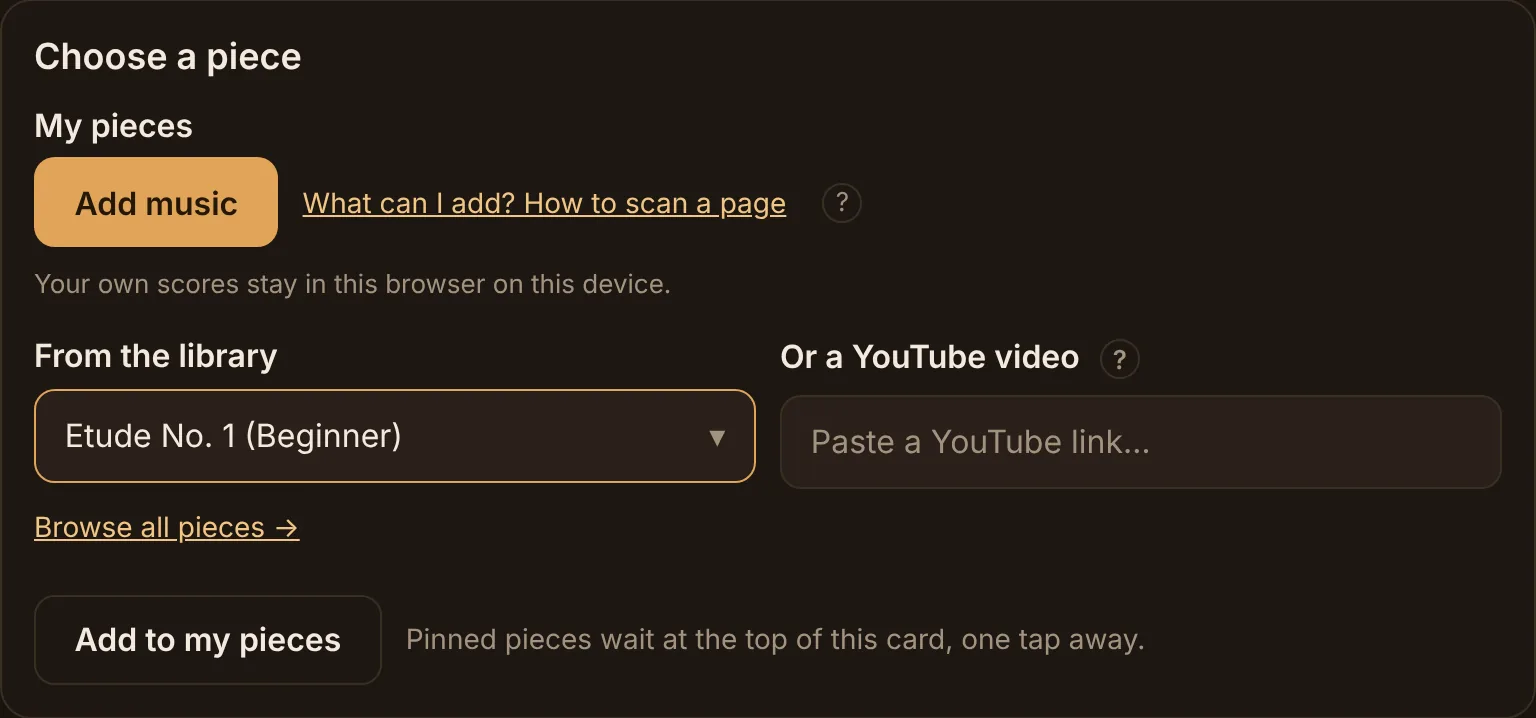
On the Practice page, pick a piece under “From the library”, or tap one of your pinned pieces in “My pieces”. The score opens below, with its controls in a bar that stays at the top of the screen.
Press Play. After two measures of clicks the music starts, and the red cursor moves through the score while you play along. The app does not listen to you and does not follow your playing: the score plays, and the cursor shows where the music is.
A free account opens the four free pieces. A trial or Premium opens the whole library, and on a free account every other piece offers “Play the opening” on its page.
Practice a passage
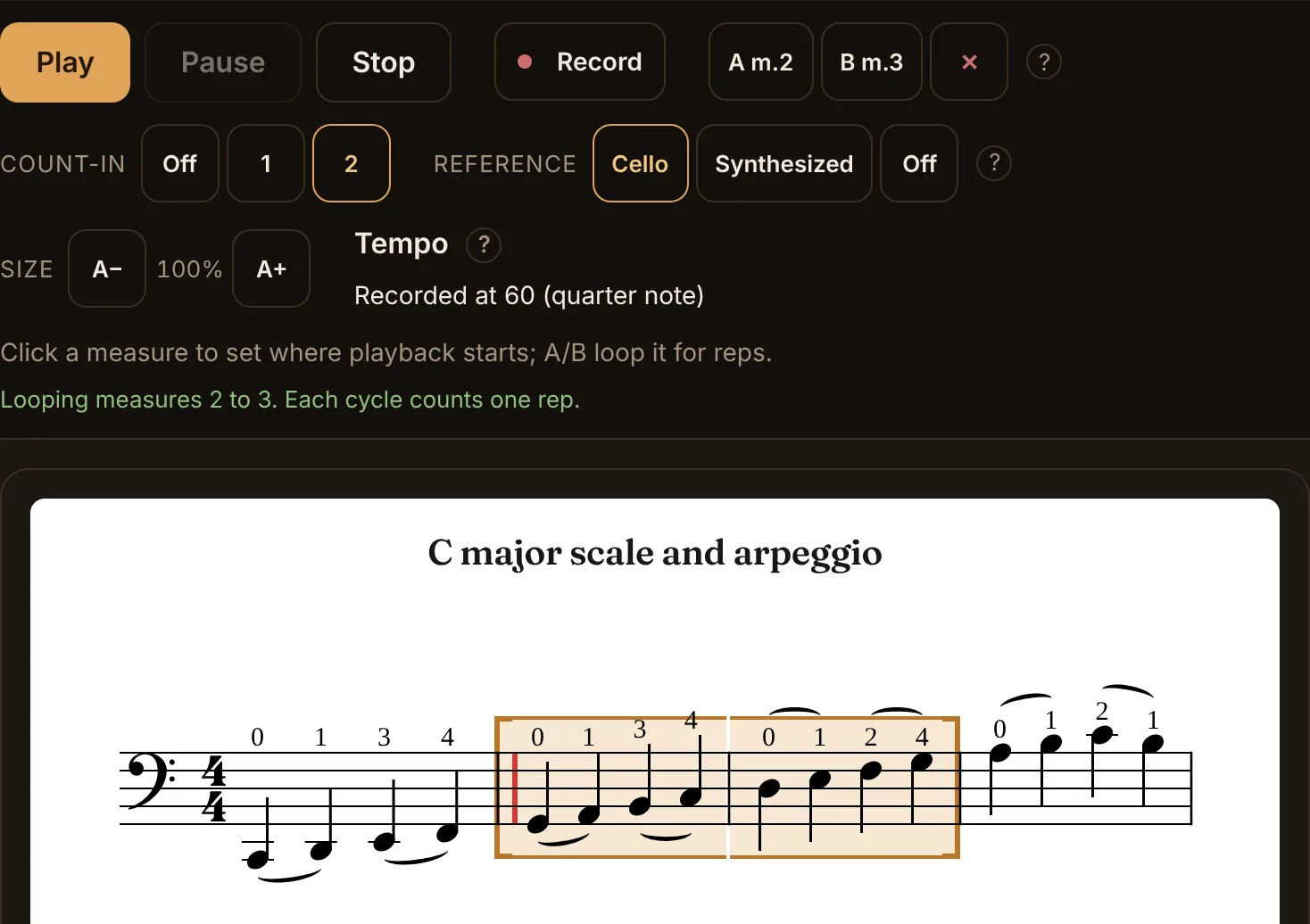
- Click the first measure of the passage, then press “A”.
- Click the last measure, then press “B”. The bars are shaded, and the line under the controls reads “Looping measures 2 to 3. Each cycle counts one rep.”
- Press Play. The passage repeats, and every time the music comes back to A, the rep count of the passage you are working on goes up by one. Press “✕” to clear the loop.
“Count-in” is how many measures of clicks you hear before the music starts: Off, 1 or 2, and 2 is recommended. A rep is one loop cycle; the app does not hear how you played it.
The piano part and “Cello only”
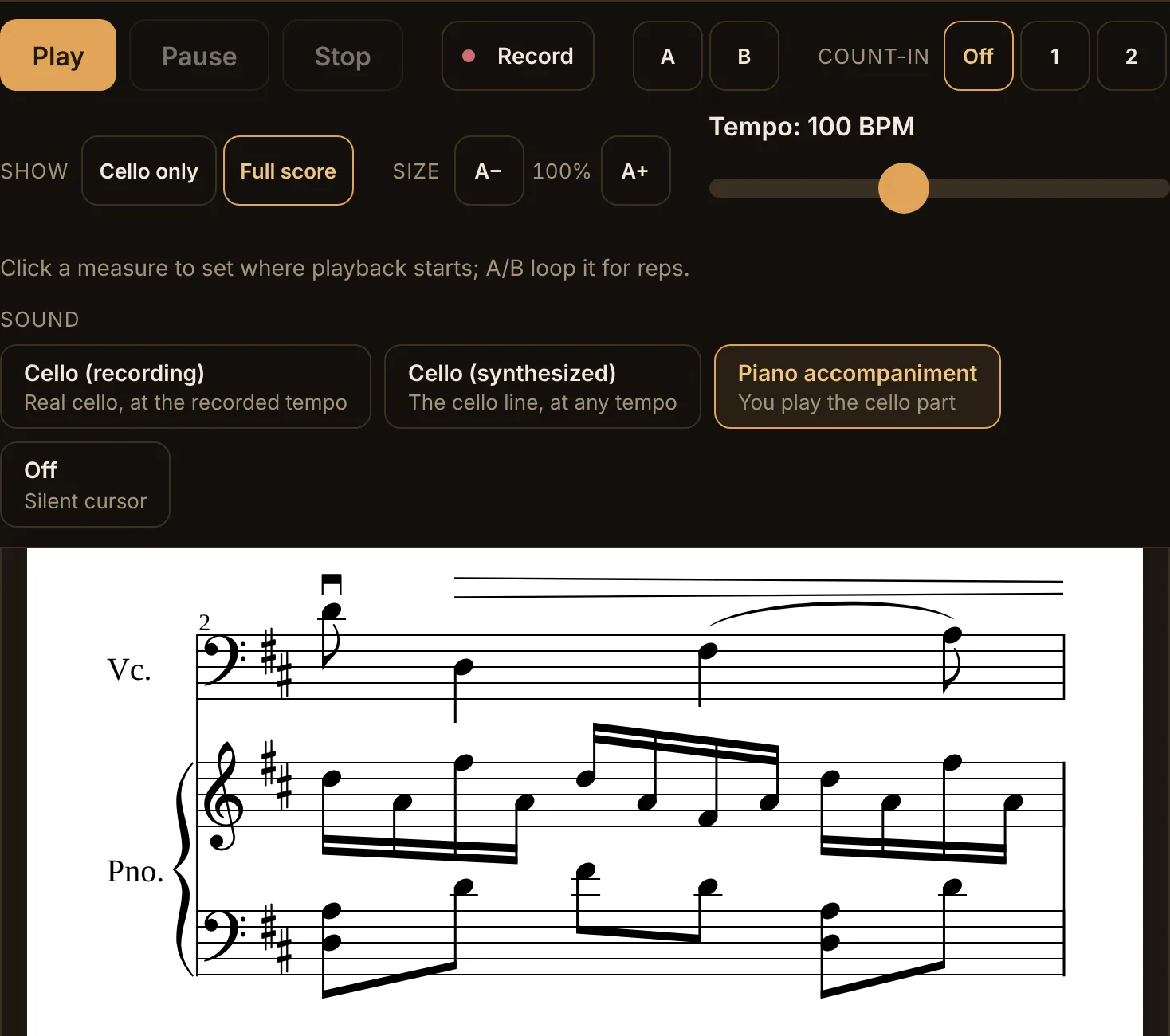
On a piece written with piano, “Show” switches between “Cello only”, the default, and “Full score”, which adds the piano staves under the cello line.
“Sound” chooses what you hear. “Cello (recording)” plays my recording of the cello part. “Cello (synthesized)” plays the cello line at any tempo. “Piano accompaniment” plays the piano while you play the cello part yourself. “Off” moves the cursor in silence. The piano is synthesized, so it follows whatever tempo you set.
Recordings and tempos
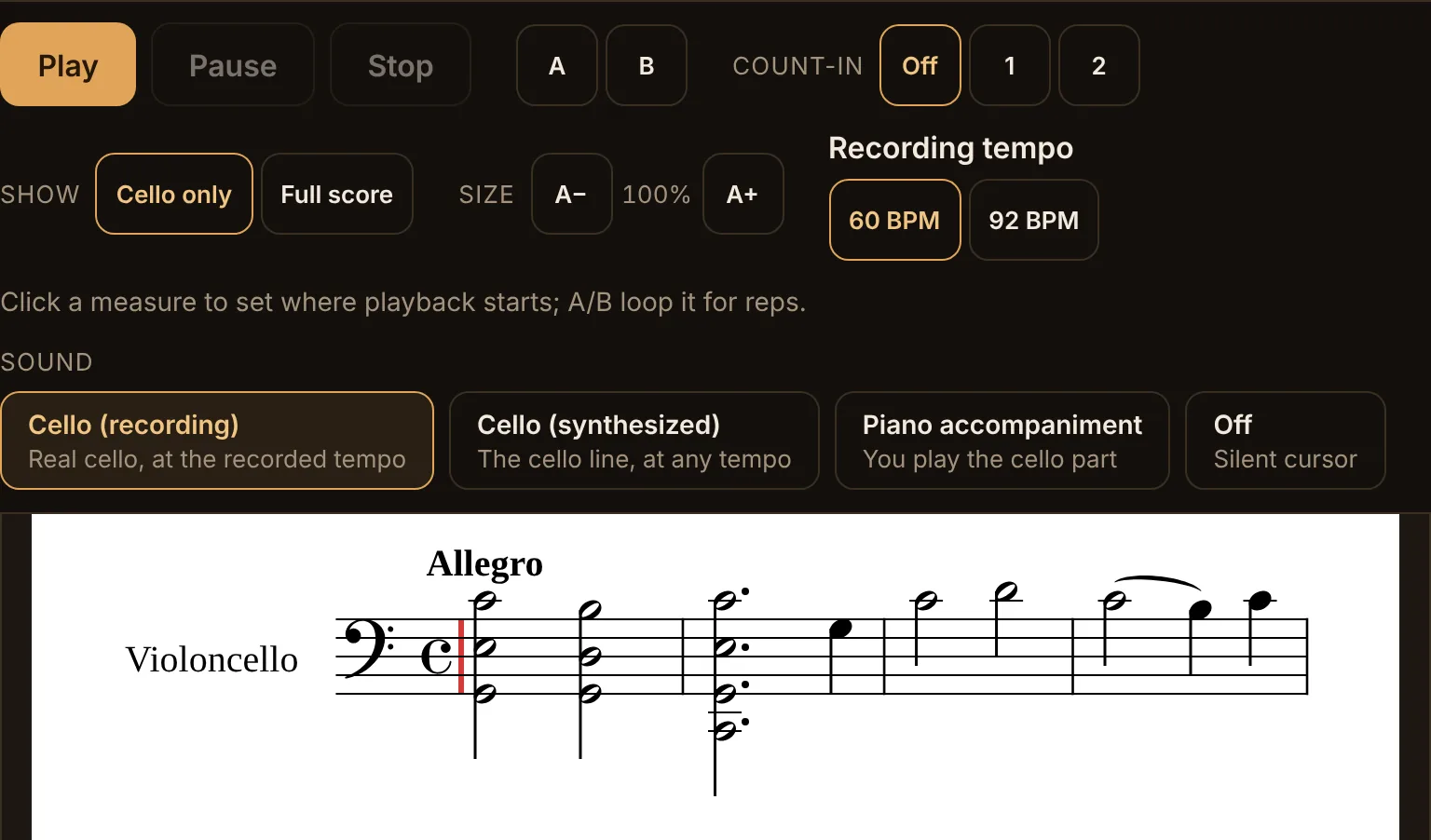
Nearly every piece comes with my own recordings, made for practicing: steady tempos and clear articulation, and a second, slower take where a piece calls for one.
A recording plays only at its recorded tempo, so with a recording chosen there is no slider. Some pieces offer two or more takes under “Recording tempo”, for example 60 BPM and 92 BPM; tap one to switch. For any other tempo, choose the synthesized cello and move the “Tempo” slider, from 30 to 200 BPM, even while the music plays. My recordings are never slowed down or sped up.
Record yourself
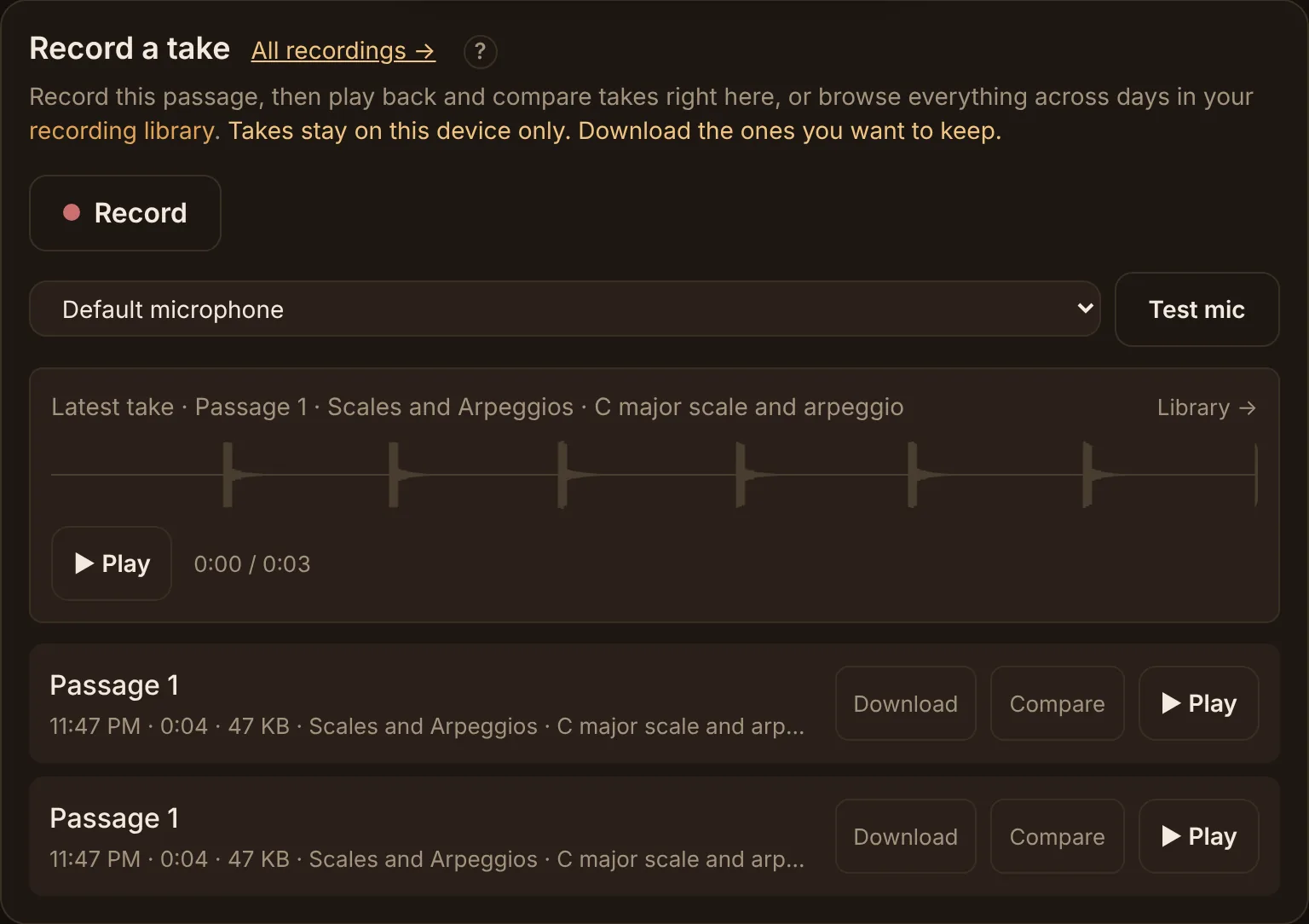
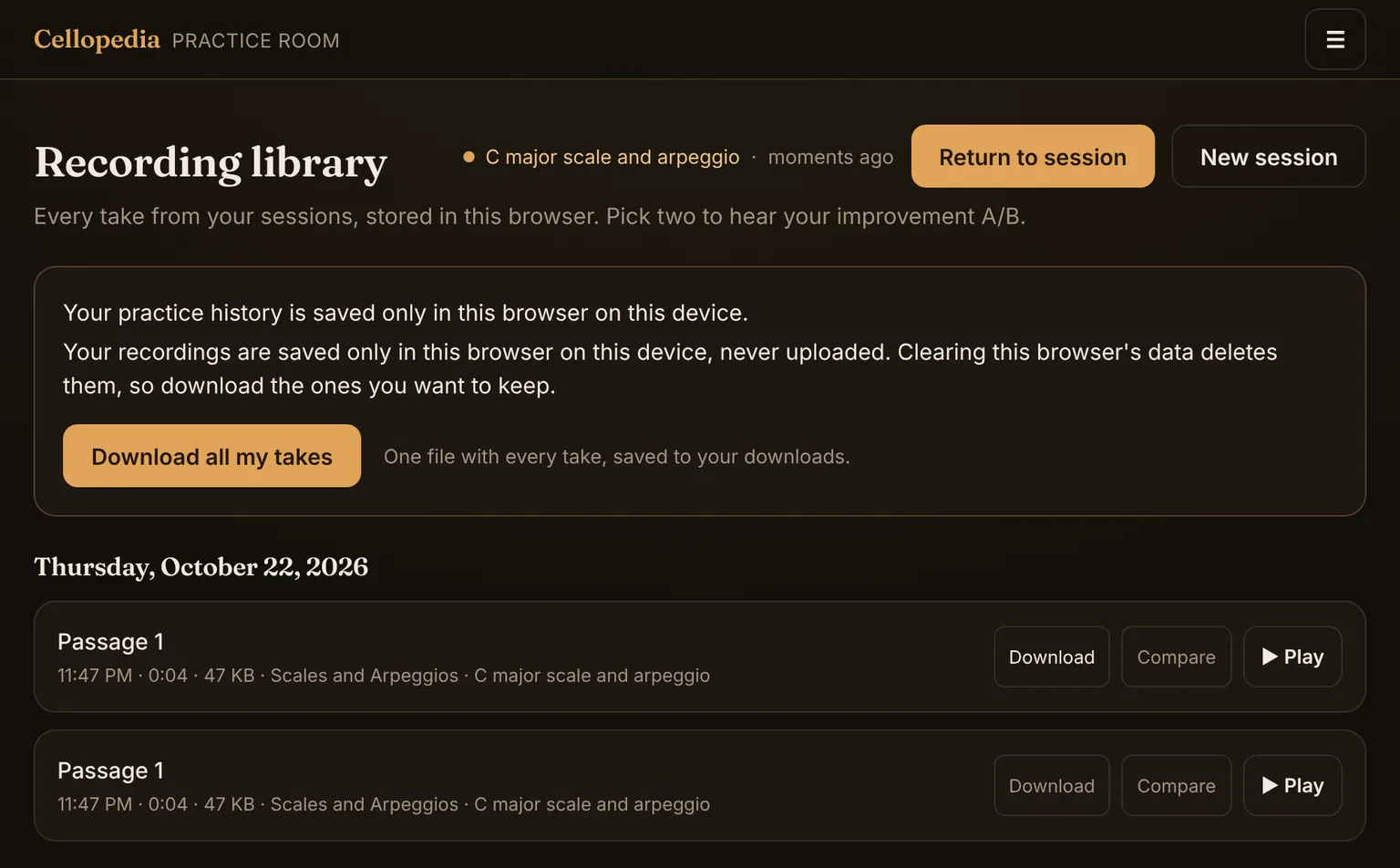
In the “Record a take” card, choose your microphone, press “Record” and play. The score’s own sound is silenced while you record, and the cursor keeps time. Press Stop, and the take appears with a waveform and a Play button; “Compare” two takes to hear them one after the other.
Your takes stay in this browser on this device and are never uploaded; I never receive them. Press “Download” to keep one, or “Download all my takes” in the recording library.
Practice with a YouTube video
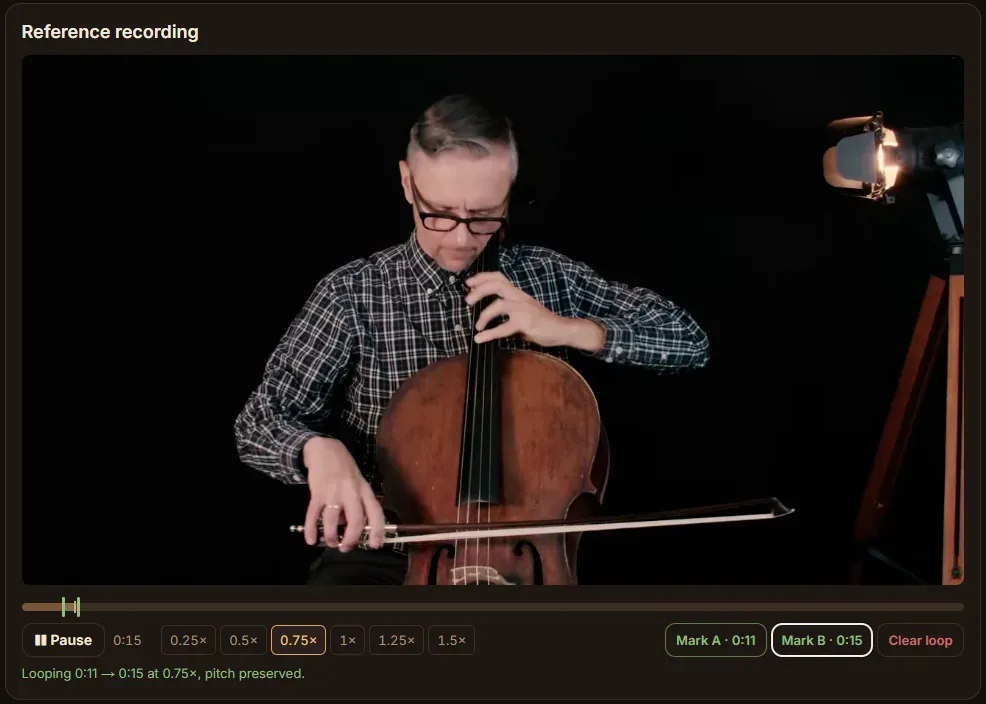
Paste a link under “Or a YouTube video”, then click “Click to load the video from YouTube”. Nothing is sent to YouTube before that click.
Use the speed buttons to slow the video down, up to 1.5×; YouTube keeps the pitch. Press “Mark A” at the start of the passage and “Mark B” at the end, and the video loops between them, counting one rep each time it comes back to A. The score does not follow a video: a video is a recording to practice with.
Add your own music
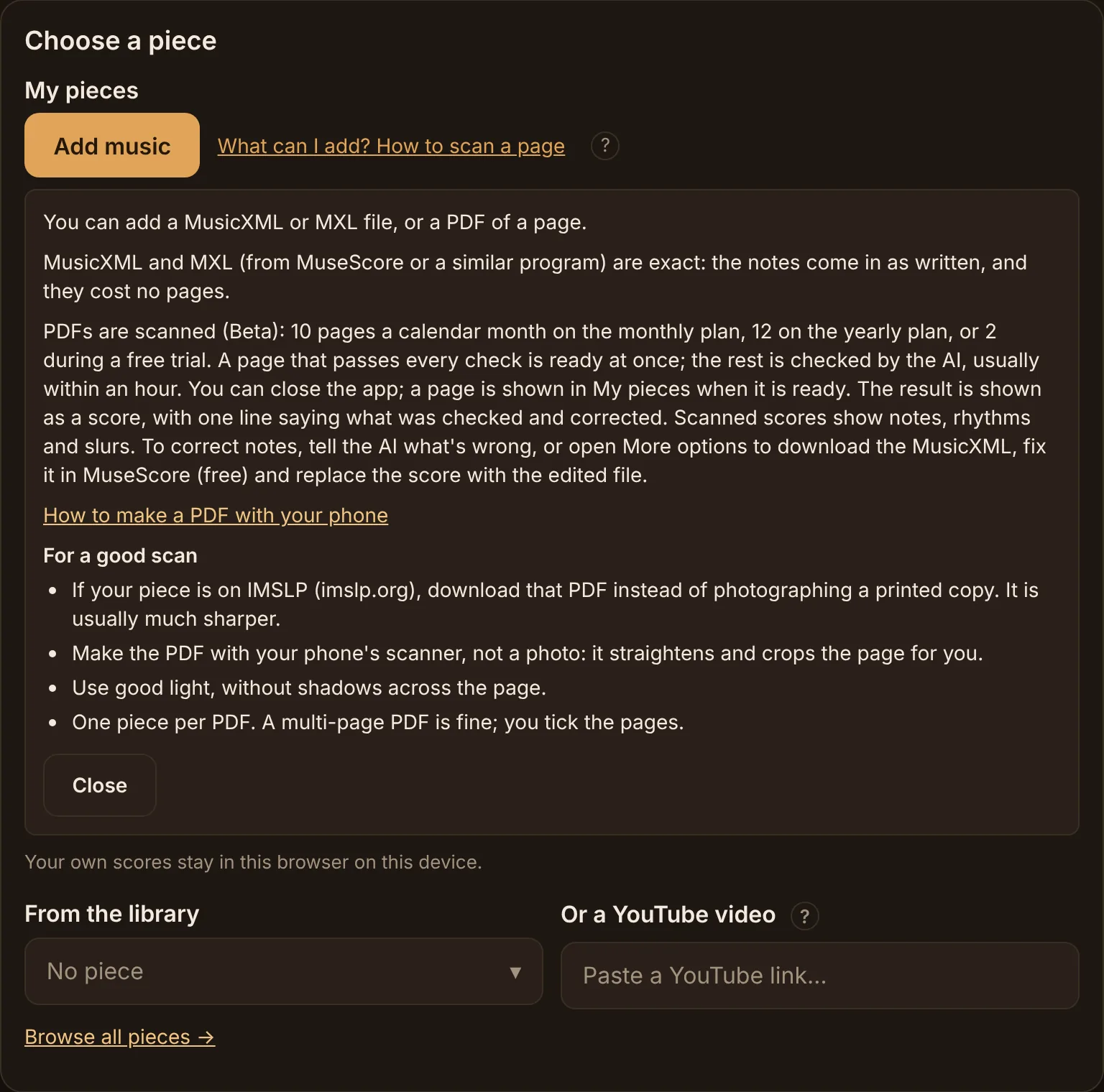
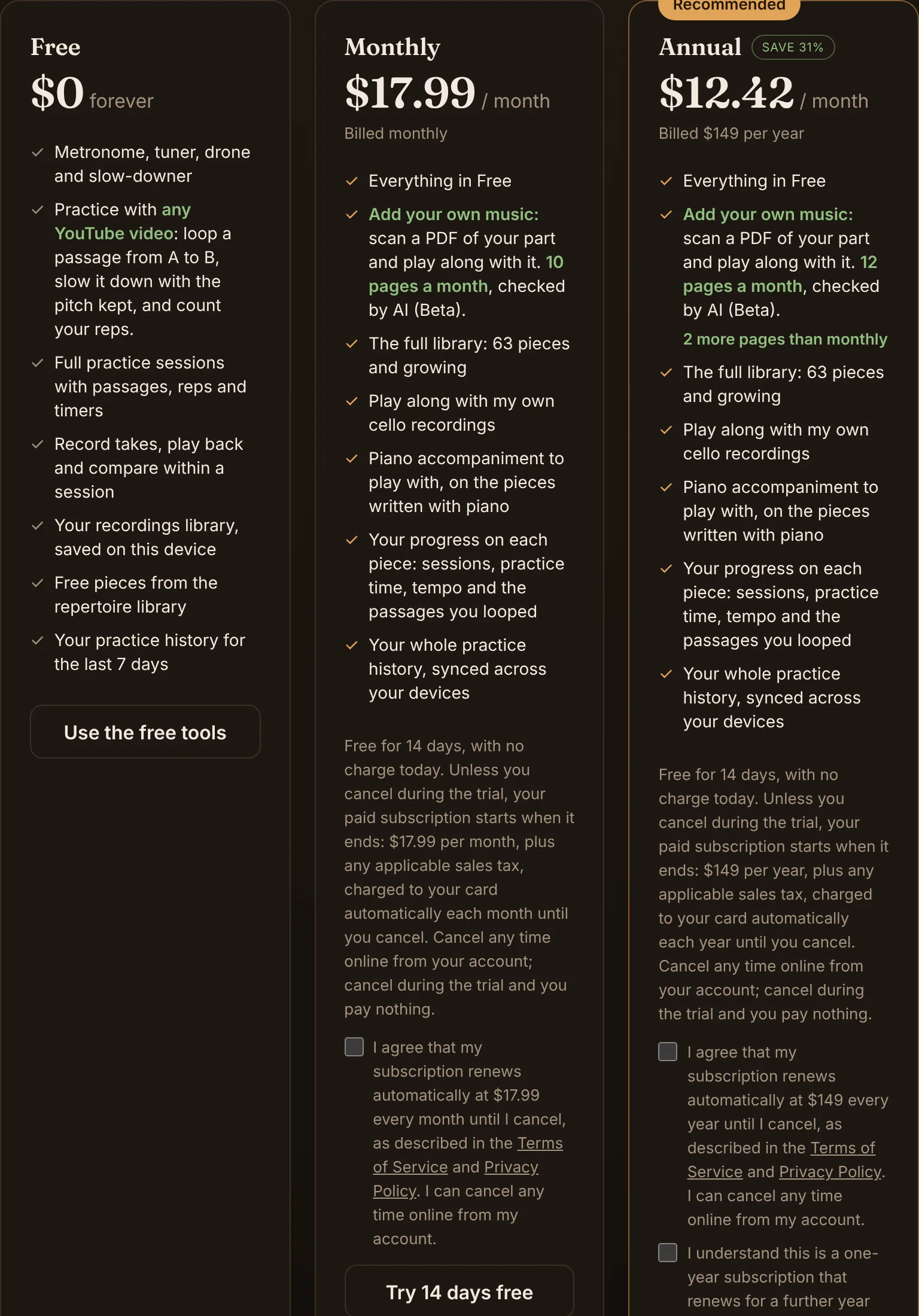
With Premium, “Add music” at the end of “My pieces” takes a MusicXML or MXL file from MuseScore or a similar program, which comes in exactly as written, or a PDF of your cello part, which is scanned (Beta): 10 pages a month on the monthly plan, 12 on the yearly plan, 2 during the free trial.
A page that passes every check is ready at once. Lines that look wrong are checked by AI, usually within an hour; you can close the app, and the result is shown in My pieces when it is ready. Your own scores stay in the browser on the device where you added them.
How to make a PDF with your phone, and what to do when a scan needs correcting, is on How to scan a page.
Your practice history
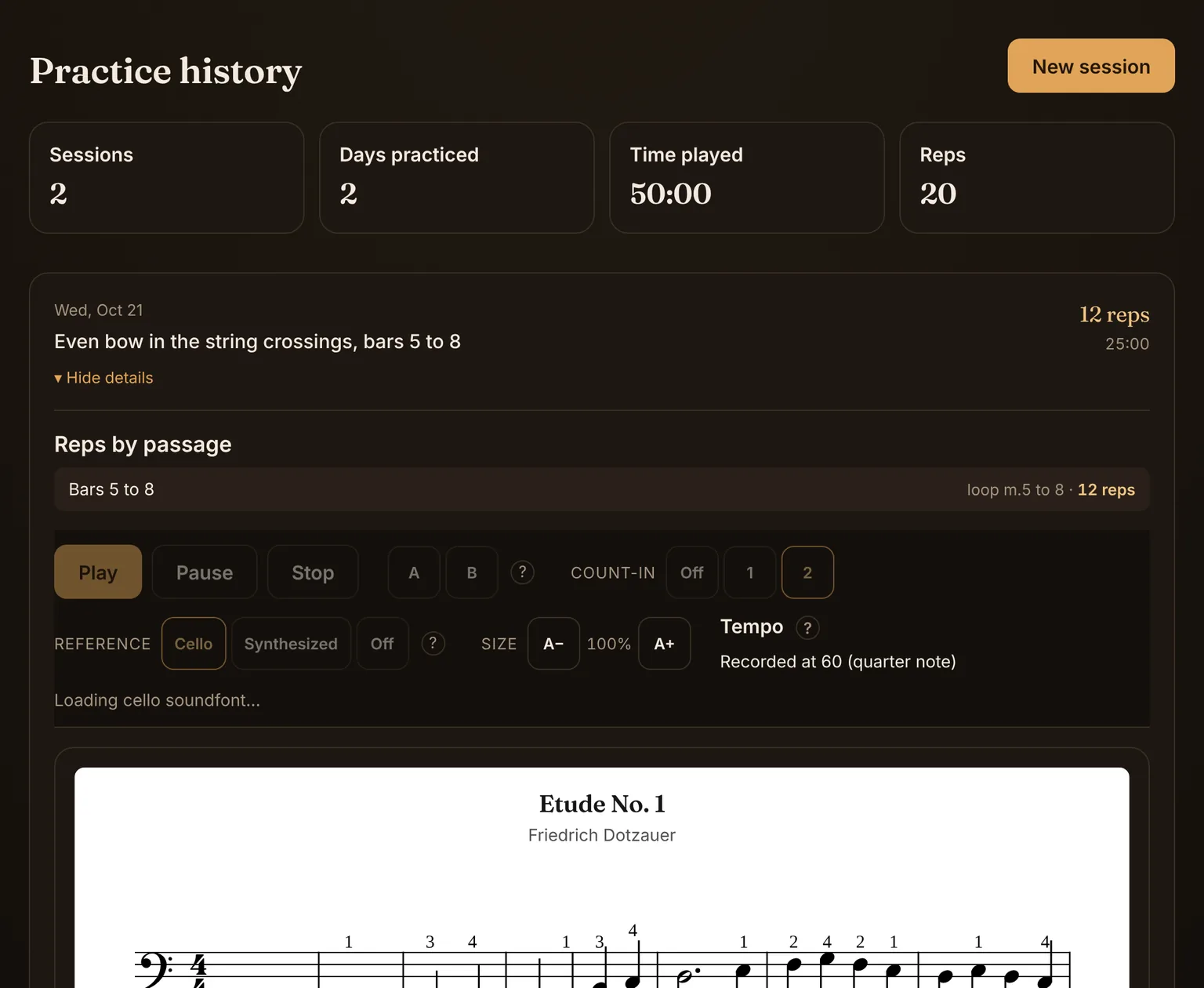
Every session you complete is saved: your goal, the passages and their reps, the piece, the tempo at the end, the time played, and what you wrote under “What changed?”.
“Past sessions”, in the room and on your account page, lists them with totals for sessions, days practiced, time played and reps, and a session’s score or video can be opened again with its loop. On the free plan you see your last 7 days. Your older sessions are kept, and Premium shows your whole history, synced across your devices.
The free tools
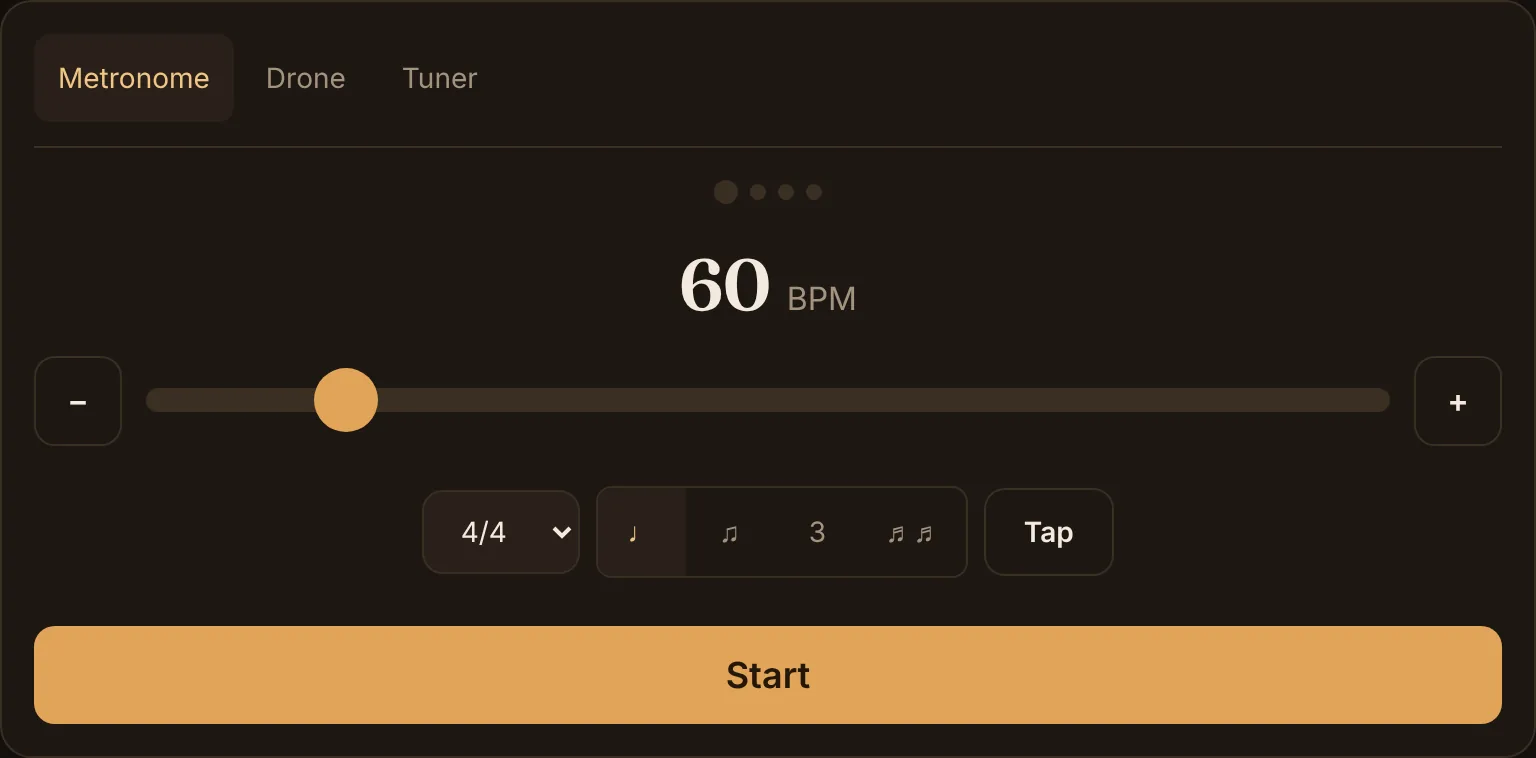
The metronome, tuner, drone and slow-downer are free, with no account, under “Tools” in the menu. The metronome, drone and tuner are also in the room, in the card beside the score.
The metronome runs from 30 to 240 BPM with subdivisions and time signatures. The tuner listens to one sustained note at a time and is tuned for the cello’s low C string. The drone plays my own recorded cello notes. The slow-downer slows an audio file or a YouTube video without changing the pitch, and loops a passage.
Your account
You sign in with your email and a code I send you; there is no password. The free plan is free for good: the practice room, the four free pieces, recording yourself and the tools.
Premium costs $17.99 a month or $149 a year, in US dollars, with a 14-day free trial. A card is required, nothing is charged today, and canceling during the trial means you pay nothing. Cancel any time from “Manage subscription” on your account page, in two clicks; you keep Premium until the end of the period you have paid for.
“Delete account…” on the same page removes your account and its data for good. The FAQ answers the common questions, and the Terms of Service say it all precisely.
Using more than one device
Your account and your plan follow you to any device you sign in on, and with Premium so do your practice sessions.
Your recordings, your own scores, your pinned pieces and your settings stay on the device where you made them. Recordings and scores are never uploaded, so to keep a take safely, download it. On a shared device, each account sees only its own local data.
Getting help
A “Help” tab with a question mark sits on the right edge of every page, halfway down (on a phone, just the “?”). Tap it and a small panel slides in: the same question box as at the top of this page, two or three links to the sections that match the page you are on, and “All help topics”, which brings you here. “Minimize” leaves only a thin tab with a “?” on the edge, and the app remembers that choice on this device; tap the “?” to open the panel again. Press Esc or “✕” to close it.
While the score is playing or a take is being recorded, the panel closes by itself and only the thin “?” tab shows, so nothing covers the music.
The question box answers from this page and the full reference. The line under it, “AI answers · Privacy Policy”, says where the answers come from (Claude AI by Anthropic, and they may be wrong) and opens the Privacy Policy’s section on what is sent. Every signed-in account can ask: 50 questions a day on a trial, a paid plan or complimentary access, 20 a day on the free plan. Signed out, the box offers to sign you in. For anything the assistant cannot answer, see the FAQ, use the feedback form, or write to hello@cellopedia.org.